I’ve rebuilt PCs and helped friends swap GPUs, so I know how messy driver installation can get. This guide walks you through a safe, step-by-step process to remove old software and install the right package for your new graphics card. I cover Nvidia, AMD, and Intel Arc GPU setups and explain why Tom’s Hardware recommends removing remnants to avoid performance loss or crashes.
It’s a good idea to take this simple option before you install a new card. I’ll show how to make sure no old files or settings remain on your system. That saves time and prevents common driver installation issues on Windows.
Key Takeaways
- I recommend a fresh start when you upgrade a GPU to protect performance.
- Remove old packages so new versions install cleanly.
- Tips apply to Nvidia, AMD, and Intel Arc hardware.
- I’ll show where to find the correct link for drivers and updates.
- Following this guide reduces crashes and long-term issues.
Why You Should Clean Uninstall Display Drivers
I’ve seen new cards underperform because remnants of prior installations interfered with the system.
Tom’s Hardware notes that the standard removal often leaves registry cruft that causes instability. Using a display driver uninstaller utility targets those hidden registry entries and stray files. That makes a fresh install of graphics drivers much more reliable.
I recommend the driver uninstaller when you switch from an nvidia card to an AMD card. The tool is written to handle Nvidia, AMD, and Intel Arc layouts and finds files standard Windows removal misses.
“A clean install is the only way to guarantee that your new driver version functions correctly.”
- Better performance: Removing previous graphics drivers avoids slowdowns and blue screens.
- Less troubleshooting: The utility clears settings and registry keys that cause odd issues.
- Extra option: You can also remove audio drivers well if sound conflicts appear.
| Reason | What it affects | Outcome |
|---|---|---|
| Leftover registry entries | System stability | Fewer crashes, smoother performance |
| Hidden files | Graphics settings | Correct settings for new version |
| Multiple vendor packages | Compatibility | Smoother switch between card types |
Essential Preparation Before You Begin
Start this process by getting everything ready—downloads, BIOS checks, and a plan to boot into safe mode. I find that a short checklist prevents delays during the removal and reinstall process.
Booting into Safe Mode
Booting into Safe Mode
Windows 10 and 11 both let you reach safe mode through Settings → Recovery → Advanced Startup. When you boot safe mode, background services stop so the driver uninstaller utility can run cleanly.
I recommend you boot safe mode to ensure the display driver is not in use by the operating system. While you’re safe mode run the utility, it will remove components without interference from running graphics software.
Downloading the Latest Driver Packages
Downloading the Latest Driver Packages
I always make sure to download the latest driver package before I boot windows safe mode. Having the installer ready on your desktop saves time and avoids browsing issues while the system is in a limited state.
It is a good idea to use the official manufacturer link for your graphics card so you get the correct version for your GPU. Also, make sure your BIOS version is current to reduce compatibility issues with new versions and avoid common system issues.
- I keep installers on the desktop before I boot windows safe mode.
- Verify BIOS and download the right package from the vendor link.
- Boot safe mode to let the utility remove the old display driver without conflicts.
How to Use Display Driver Uninstaller for a Fresh Start
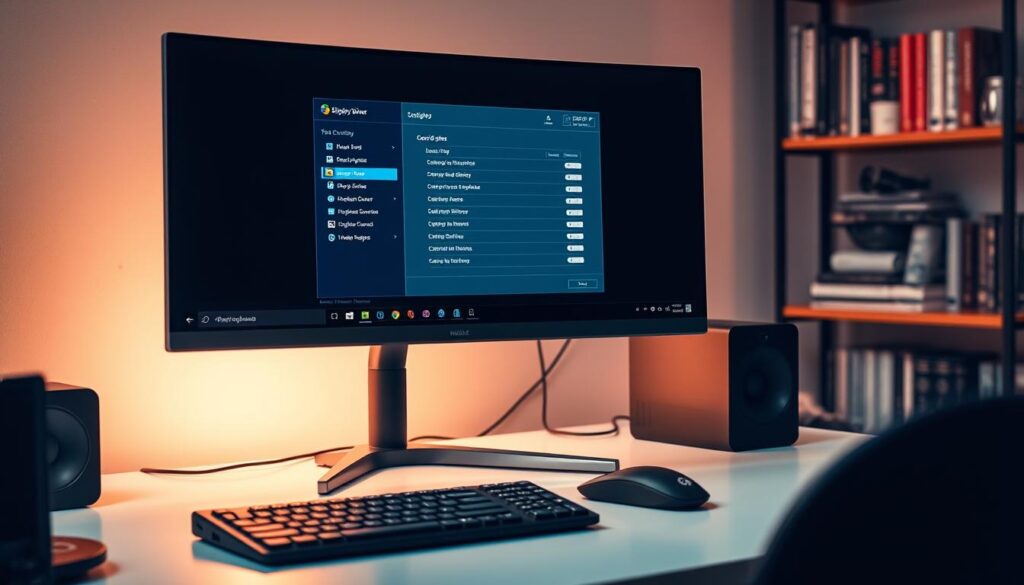
I walk you through the practical steps I use with Wagnardsoft DDU v18.0.5.9 so the removal goes smoothly and quickly.
Configuring the Utility Settings
First, download the latest version from the official Wagnardsoft link. The tool is recommended by Guru3D and Tom’s Hardware for a reason.
When you boot safe mode, open the utility and turn off automatic driver downloads. That prevents Windows from reinstalling files while the tool runs.
Selecting Your GPU Hardware
I always pick the GPU type from the dropdown. Choosing the correct vendor ensures the tool targets only the vendor-specific package.
Tip: If you plan to swap a nvidia card for an AMD card, let the utility remove the related audio components too.
Executing the Removal Process
Use the “Clean and restart” option if you want the system to boot back into Windows automatically. If you are installing a new card right away, choose “Clean and shutdown.”
This process removes leftover registry keys and stray files so you can install new drivers without legacy issues. I find it saves time and troubleshooting later.
Reinstalling Your Graphics Drivers Correctly
After a successful restart, Windows may load a basic adapter until you install the vendor package for your GPU.
I recommend installing the official driver package you downloaded for your specific graphics card right away. Use the installer from the vendor so the right files and settings apply to your card.
Perform a clean install from the package options. For an nvidia amd setup, choose the “Custom” option and pick only the components you want. That helps prevent leftover pieces from older software types.
Once the install finishes, restart the system one more time. This gives the registry a chance to initialize and ensures the new driver and graphics settings load properly.
Verifying System Stability After Installation
Open a game or graphics benchmark to check performance and look for issues. I usually run a short session and watch temps and frame rates for any odd behavior.
- I use the display driver uninstaller earlier so verification is simpler.
- If you boot safe mode to finish, you can be confident the system is free of conflicting software.
- Monitor the system for a few minutes after the final restart to confirm the GPU functions as expected.
Conclusion
I’ll wrap up with a quick reminder of why using a display driver uninstaller matters for long‑term stability.
I hope this guide helped you see how the right removal step keeps your system healthy and avoids common graphics issues.
By following the process and booting into safe mode, you can remove old drivers and then install the vendor package for your graphics card with confidence.
Use the driver uninstaller utility when you swap hardware or face stubborn problems. I find that routine checks save hours of troubleshooting on Windows and make the GPU perform at its best.
I encourage you to use this method whenever you upgrade your card—it’s a simple idea that prevents future compatibility issues and keeps your system running smooth.
FAQ
What is the safest way to prepare my PC before removing graphics software?
I always start by backing up important files and creating a system restore point. Then I download the latest driver package from NVIDIA or AMD and store it on my desktop. I also note my current GPU model and Windows version so I can grab the correct package later.
Do I need to boot into safe mode to run a driver uninstaller utility?
Yes. I recommend booting Windows into Safe Mode before running the utility; it prevents the GPU software from loading and reduces the chance of leftover files or registry entries blocking removal. From there I run the tool and reboot normally when it finishes.
How do I choose the right option in the uninstaller for my GPU?
I pick the vendor-specific option — NVIDIA or AMD — and then select the full removal or factory reset choice. That targets both the core package and any audio or control-panel components tied to the card.
Will removing previous video packages affect my audio drivers or other hardware?
It can. I check audio devices and chipset drivers afterward. Many GPU installs also add HDMI audio or helper services, so I reinstall any audio drivers if sound changes after the process.
How do I verify the system is stable after installing new graphics software?
I check Device Manager for any warning icons, run a few graphics tasks like gaming or video playback, and monitor temperatures and frame rates. If things run smoothly for a few hours, I consider the job successful.
Is it a good idea to perform a fresh install of the vendor package right after removal?
Absolutely. I install the downloaded package immediately after rebooting to avoid Windows auto-installing an older version. I choose the custom or clean-install option if available to overwrite leftover components.
How do I handle problems if the new package causes crashes or poor performance?
I roll back to the previous version using my restore point or Device Manager, then try a different driver release. Sometimes the latest build has issues — installing a certified WHQL or a slightly older stable version often fixes it.
Are there any registry or leftover files I should remove manually?
The utility usually handles those, but I scan locations like Program Files, ProgramData, and user AppData for leftover vendor folders and delete them. I avoid editing the registry unless I’m confident, but the tool generally clears problematic keys.
How long does the whole process typically take?
From prep to verification I budget about 30–60 minutes. Downloading and creating a restore point takes a few minutes, the removal and reboot cycle can take 10–20 minutes, and testing plus tweaks may add extra time.
Can I use the same procedure for laptops and desktop PCs?
Mostly yes, but I check for OEM-specific drivers on laptops. Manufacturers like Dell or HP sometimes recommend their customized packages. If you have a laptop, I download vendor-provided installers first and follow their guidance.
What if Windows automatically reinstalls graphics software I don’t want?
I disable automatic driver updates temporarily in Windows Update or using Group Policy/Show or hide updates tool before reinstalling the desired package. That prevents Windows from replacing a stable release with a problematic one.
Which utility should I trust for a thorough removal?
I use a reputable driver removal utility known in the PC community. I confirm I downloaded it from the official source and run it in Safe Mode for best results. That approach minimizes leftover files and registry entries.

Ethan is a lead GPU reviewer and hardware analyst with a passion for pushing silicon to its absolute limits. With a background in computer engineering, he spends his days building custom test benches, analyzing frame-time graphs, and breaking down complex GPU architectures. When he’s not benchmarking the latest NVIDIA and AMD releases for VN Pixel, he is likely tweaking his custom-loop water-cooling setup to achieve the perfect overclock.