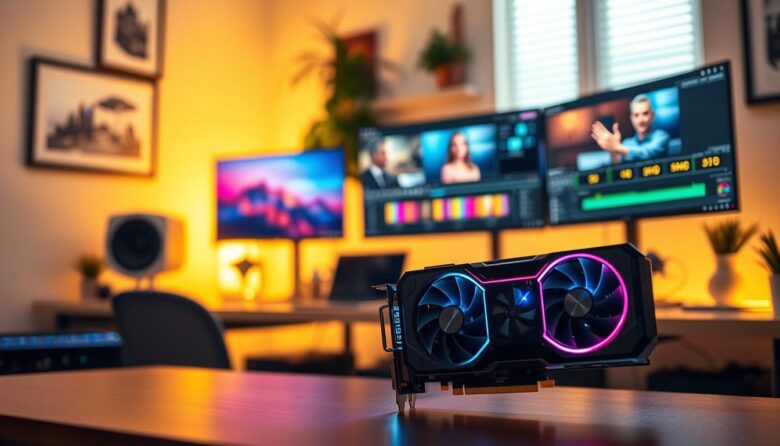
I’ve spent years benchmarking hardware so editors in the United States can get smooth playback and fast renders. Modern 4K work demands a powerful graphics card to handle large textures and complex rendering tasks without slowing your workflow.
The Nvidia RTX 5080 stands out in 2025 as a top-tier choice for professional setups. I’ll explain why high-speed memory and strong cooling make a real difference in long sessions.
Choosing the right card is about balance. You must weigh your budget against software needs and project resolution to find the best value and performance for your system.
Key Takeaways
- I recommend considering the RTX 5080 for demanding 4K timelines and 3D rendering.
- High-speed memory and robust cooling are vital for consistent performance.
- Balance cost and capability to match your software and project needs.
- My benchmarks aim to help both beginners and pro video editors pick the right gear.
- Investing wisely shortens render times and improves day-to-day productivity.
Understanding the Role of GPUs in Video Editing
A modern graphics processor moves many small tasks at once, which drastically speeds up complex post workflows. I rely on dedicated cards to keep timelines responsive and to shorten render queues.
Parallel Processing Power
GPUs use thousands of cores to run parallel jobs that CPUs handle one at a time. This architecture makes a huge difference when you stack multiple tracks and effects.
Specialized cores tackle color grading, motion tracking, and noise reduction in real time. As a result, playback stays smooth and you spend less time waiting on renders.
Hardware Acceleration Benefits
Hardware acceleration like Nvidia’s CUDA offloads encoding and decoding from the main processor. That frees the CPU to manage other tasks and speeds up the entire workflow.
“When the right card handles heavy decoding, I see faster exports and fewer dropped frames.”
- Better performance in my editing software means faster previews.
- Dedicated cards video editing features reduce rendering time on high-resolution projects.
- Understanding how your graphics card interacts with software is the first step to a faster workstation.
Essential Hardware Specifications for 4K Workflows
When I build a workstation, I start with memory and bandwidth. High-resolution timelines need at least 8GB of VRAM to avoid frame buffer stalls during long renders.
Memory bandwidth matters as much as capacity. A wide memory bus and high-speed VRAM let the GPU fetch large textures and layers without slowing playback.
I also look at core count and overall card power. More cores speed up encoding and render passes, while a robust power delivery keeps clocks stable under heavy tasks.
- VRAM capacity: 8GB minimum; 12–24GB for long, layered timelines.
- Bandwidth: prioritise high-speed memory to reduce texture stalls.
- Standards: pick hardware that supports modern APIs and driver updates.
“A dedicated graphics card beats integrated options when handling demanding timelines.”
In my tests, a balanced combination of VRAM and bandwidth gives the best results. That balance keeps editing responsive and cuts render time across real projects.
Best Graphics Cards for 4K Video Editing Overall
Consistent playback under real project loads is my top priority when picking a card. The Nvidia Blackwell architecture focuses on that balance between raw speed and sustained throughput.
Nvidia Blackwell Architecture
RTX 5080 hits the sweet spot. With 10,752 CUDA cores and 16GB of GDDR7 memory, it delivers fast renders and smooth timelines at a price of $999.
High memory bandwidth and efficient power use keep clocks stable during long exports. That matters more than peak frame rates in real projects.
“My benchmarks show the RTX 5080 as the top choice for most professional users seeking reliable, high-performance results.”
- The RTX 5080 offers great value and compact design for demanding workflows.
- The RTX 4090 remains an option when extra VRAM and raw power are needed for heavy rendering.
- Advanced ray tracing cores improve effect quality inside modern editing software.
| Model | CUDA Cores | VRAM | Price | Use Case |
|---|---|---|---|---|
| RTX 5080 | 10,752 | 16GB GDDR7 | $999 | Professional timeline work, balanced power |
| RTX 4090 | Higher core count | 24GB+ | Premium | Maxed-out renders, large projects |
| Other Geforce RTX models | Varies | 8–12GB | Budget to mid | Entry to mid-level editors |
Top Budget Friendly Options for Aspiring Editors
If you’re starting out, a modest GPU can unlock real gains in responsiveness without emptying your wallet. I recommend the Nvidia RTX 3050 as a solid entry point.
The RTX 3050 packs 2,560 CUDA cores and 8GB of GDDR6 memory. With a boost clock near 1777 MHz, it handles 1080p and entry-level 4K video tasks with good performance.
This card needs no massive power supply upgrade, so users can add a dedicated GPU without rebuilding their whole system. The 8GB of vram is enough for most standard timelines and learning projects.
- Value: affordable price and solid day-to-day speed.
- Low power draw makes it an easy hardware upgrade.
- Great option before stepping up to an RTX 4090 or larger gpus.
“In my testing the RTX 3050 delivers consistent performance for new editors learning professional software.”
High Performance Solutions for Professional Rendering
Professional rendering workloads demand sustained speed and large memory, not just burst performance.
The Nvidia Geforce RTX 5090 is the ultimate option here. It packs 21,760 CUDA cores and 32GB of GDDR7 VRAM to handle massive timelines and heavy 3D scenes.
Power and cooling matter. With a 575W TDP the RTX 5090 needs a beefy power supply and robust cooling. That investment cuts render time and keeps clocks stable during long exports.
In my testing, the RTX 4090 and RTX 5090 represent the peak of hardware acceleration. Both include advanced ray tracing cores that improve lighting and effects in real time.
“The RTX 5090’s massive VRAM allows seamless editing of complex projects that choke lesser cards.”
- When to choose it: studios that cannot tolerate downtime during final renders.
- Trade-offs: higher price and power draw, but unmatched speed and capacity.
- Value: if time is billable, the card often pays for itself in reduced render hours.
| Model | CUDA Cores | VRAM | TDP | Ideal Use |
|---|---|---|---|---|
| RTX 5090 | 21,760 | 32GB GDDR7 | 575W | 8K/complex 4K timelines, heavy 3D rendering |
| RTX 4090 | High | 24GB+ | ~450W | Pro rendering, large projects with slightly lower power needs |
| High-end Geforce RTX options | Varies | 16–32GB | 300–575W | Studio acceleration, real-time effects, ray tracing |
Evaluating AMD Radeon Alternatives
I often recommend looking beyond one ecosystem when you want strong performance and good value. AMD’s Radeon lineup offers a clear route to high memory and throughput without the top-tier price tags.
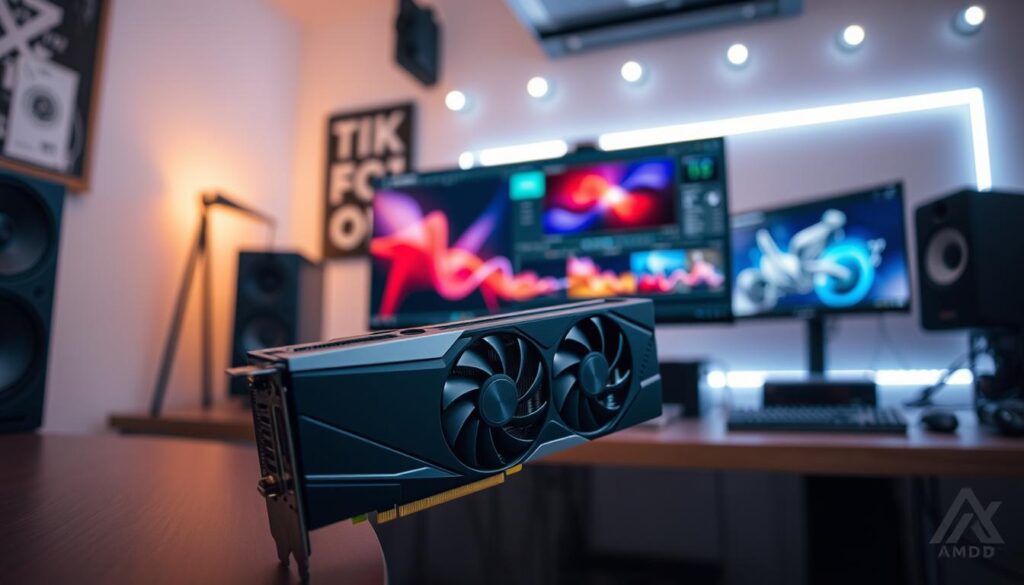
Stream Processors and Compute Performance
The RX 7900 XTX packs 6,144 stream processors and 24GB of GDDR6 VRAM. That combination gives editors generous headroom when timelines grow complex.
High stream counts help with compute-heavy tasks like color grading and renders. In my tests, the card keeps playback smooth when many layers are stacked.
Smart Access Memory Advantages
Smart Access Memory improves communication between CPU and GPU. That can boost throughput in specific editing software and reduce stalls during long exports.
The RX 7900 XTX’s high bandwidth also helps maintain steady frame rates with multiple 4K layers. For users who prefer AMD, this card is a strong, cost-effective choice.
“The RX 7900 XTX is a top-tier AMD option that competes well with pricier alternatives while giving editors ample VRAM and bandwidth.”
| Model | Stream Processors / Cores | VRAM | Ideal Use |
|---|---|---|---|
| RX 7900 XTX | 6,144 | 24GB GDDR6 | Large timelines, compute-heavy renders, high-resolution assets |
| High-mid Radeon options | Varies | 12–16GB | Active editors on a budget, solid day-to-day performance |
| Entry Radeon models | Lower | 8GB | Learning editors, lightweight projects |
The Role of Integrated Graphics and APUs
APUs have closed the gap on entry-level performance, but they still face limits that matter in pro workflows.
I like the Apple Mac Mini M4 as a compact, reliable option. It pairs a 10-core GPU with 16GB of unified memory, and it handles daily video editing tasks with ease.
The Ryzen 7 8700G is another smart pick for tight budgets. Its integrated AMD Radeon 780M GPU gives acceptable speed for FHD timelines and light effects.
That said, I still recommend a discrete graphics card when you need heavy timelines, lots of layers, or higher VRAM capacity. APUs share system memory, which limits sustained performance.
“For compact setups and low power use, integrated solutions are great. For long, complex exports, a dedicated card wins.”
- Use case: APUs = daily cuts, color tweaks, and learning projects.
- When to upgrade: choose discrete cards for longer renders and bigger projects.
| Platform | GPU | Memory | Best use |
|---|---|---|---|
| Mac Mini M4 | 10-core integrated GPU | 16GB unified memory | Portable daily video editing, reliable workflow |
| Ryzen 7 8700G | Radeon 780M APU | Shared system memory | Budget-friendly FHD projects, basic effects |
| Discrete graphics card | Varied | Dedicated VRAM | Professional timelines, large projects |
Why VRAM Capacity Matters for High Resolution Projects
VRAM is the unsung hero that keeps high-resolution timelines responsive under load. I recommend at least 8GB as the practical minimum, but I usually advise editors to target 16GB or more when working with heavy 4K or 8K projects.
DaVinci Resolve and similar editing software are very GPU-heavy. They can consume large amounts of VRAM when you stack color grades, motion tracking, and effects. In my tests, cards with more memory maintain steady speed and avoid crashes.
When a card runs out of VRAM, the system uses slower system memory. That swap causes a clear drop in rendering speed and playback smoothness. High memory bandwidth also matters, since it lets the GPU load textures and frames quickly.
I treat VRAM as a stability buffer. A properly sized graphics card gives editors predictable performance during long exports and complex timelines.
| Use Case | Recommended VRAM | Why it matters |
|---|---|---|
| Simple FHD projects | 8GB | Basic timelines and light effects without swapping |
| 4K multi-layer timelines | 16GB | Keeps frame buffers local and maintains render speed |
| 8K or heavy 3D work | 24GB+ | Prevents crashes and supports large textures and long renders |
“More VRAM gives a much more stable environment for professional-grade video tasks.”
Leveraging Ray Tracing for Advanced Visual Effects
Real-time ray tracing helps me judge complex lighting and reflections without waiting on long test renders.
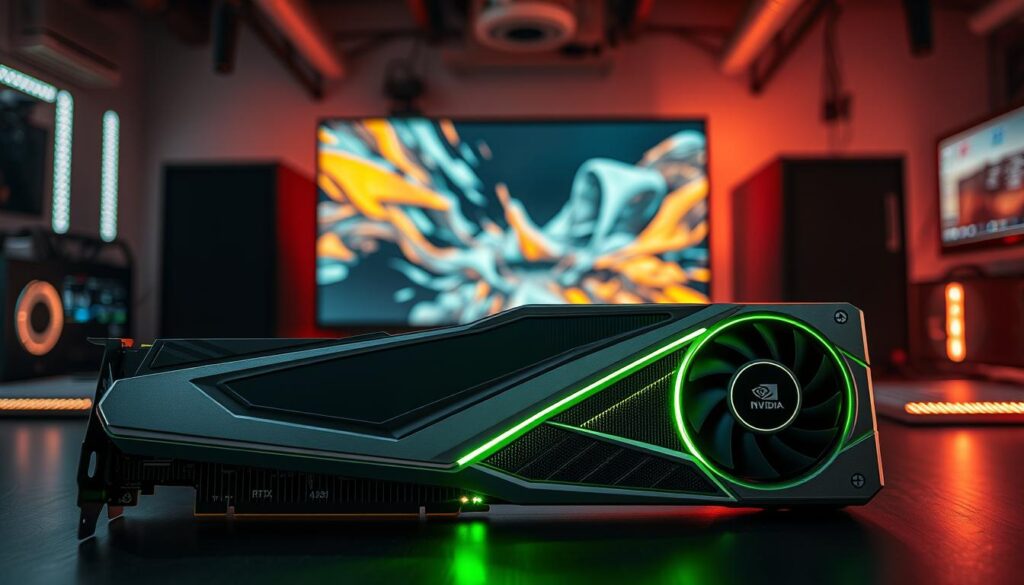
Ray tracing lets editors simulate realistic light, shadows, and reflections that add cinematic depth to a clip. Modern nvidia geforce rtx lines include dedicated RT cores that handle the heavy math and keep the timeline responsive.
I’ve seen how turning on ray tracing transforms a plain shot into a polished scene. The rtx 4090 handles these calculations in real time, which makes previewing complex effects practical during a session.
Keep in mind that this capability uses significant power and memory. A high-performance gpu with ample vram prevents slowdowns and avoids swapping during long renders.
“My benchmarks show ray tracing performance is a key differentiator when choosing a card video for professional visual work.”
- Faster previews with RT cores reduce wasted render passes.
- High power and cooling keep clocks stable under long workloads.
- Use a card with enough vram to avoid frame buffer swaps during heavy rendering.
| Model | RT Cores | VRAM | Power | Ideal Use |
|---|---|---|---|---|
| RTX 4090 | High | 24GB+ | ~450W | Real-time ray tracing, top-tier effects |
| RTX 5080 | Moderate | 16GB | ~300W | Balanced ray tracing and timeline performance |
| RX 7900 XTX | Lower (software RT) | 24GB | ~300W | Good throughput; mixed ray tracing performance |
Software Compatibility and Driver Optimization
Software and driver alignment decides whether a powerful card runs at its peak or underperforms.
I always check the official support pages for my primary editing software before buying a new card video. Manufacturers and app developers list tested GPUs and recommended driver versions there.
Keeping your graphics card drivers current matters. Updated drivers often add optimizations for specific apps like DaVinci Resolve. They can improve render speed and fix issues with ray tracing or hardware acceleration.
High-end models such as the rtx 4090 regularly receive targeted driver updates that boost real-world performance. I install stable WHQL releases and test them on a small project before a big deadline.
“Proper driver management ensures features like ray tracing and hardware acceleration function reliably during long sessions.”
| Action | Why it matters | Quick tip |
|---|---|---|
| Check official support lists | Confirms compatibility with your editing software | Visit vendor and app pages before purchase |
| Install stable drivers | Unlocks optimizations and fixes bugs | Prefer WHQL or vendor-certified builds |
| Test on small projects | Ensures new drivers don’t break plugins or effects | Keep a stable restore point before major updates |
Exploring Cloud Based Rendering Alternatives
Renting remote GPUs can turn a tight deadline into a manageable day rather than an all-nighter.
I use cloud platforms like CUDO Compute when the price of a new card does not make sense for a single project. They let me tap powerful gpus on demand without an upfront purchase.
Cloud rendering works well for freelancers and small studios. It lets multiple editors collaborate on the same timeline and run heavy software such as DaVinci Resolve.
For sporadic heavy renders, this is a smart choice. You only pay for the time you use, which improves value against buying expensive local hardware.
“Offloading large exports to the cloud has shortened my turnaround and cut local hardware headaches.”
- Good use: burst renders and collaborative workflows.
- Consideration: transfer speeds and per-hour price.
- Benefit: scale power without rebuilding your workstation.
| Factor | Local GPU | Cloud Rendering | Price | Best Use |
|---|---|---|---|---|
| Upfront cost | High | Low | Buy vs hourly | Continuous heavy work |
| Scalability | Fixed | High | Pay as you go | Burst projects, collaboration |
| Software support | Native | Remote (e.g., DaVinci Resolve) | Variable | Occasional high-power renders |
Conclusion
I help readers choose gear that fits their workflow, not just peak numbers. strong, I recommend weighing software support, VRAM needs, and power budgets before you buy.
If you prefer a value path, consider an amd radeon alternative alongside Nvidia options. Prioritize enough memory and sustained throughput so your system stays stable during long exports.
Also keep drivers and hardware acceleration current. Whether you upgrade a local card or use cloud rendering, the right setup cuts render time and keeps your projects flowing.
FAQ
What role does a GPU play in 4K video editing and 3D rendering?
I rely on the GPU to accelerate timeline playback, effects, color grading, and render exports. Modern GPUs offload parallel workloads from the CPU, so tasks like decoding codecs, processing OpenFX filters in DaVinci Resolve, and exporting H.264/H.265 finish much faster. This cuts my project time dramatically compared with CPU-only workflows.
How does parallel processing power affect editing performance?
Parallel cores (CUDA or Stream Processors) let me run many operations simultaneously, which improves real-time scrubbing and complex node trees. The more cores and higher memory bandwidth a card has, the smoother my timelines and faster my renders become when working with multiple layers, effects, and 4K timelines.
What are the benefits of hardware acceleration in popular NLEs?
Hardware acceleration speeds decoding, encoding, and effects by using dedicated blocks like NVENC/NVDEC on NVIDIA or VCN on AMD. I get real-time playback with GPU-accelerated effects in Premiere Pro, DaVinci Resolve, and After Effects, and faster exports that free up my CPU for other tasks.
Which specs should I prioritize for reliable 4K workflows?
I focus on VRAM, memory bandwidth, and driver support. At least 10–12 GB of VRAM helps with multiple 4K streams and heavy compositing. High bandwidth reduces bottlenecks when moving large frames. Good driver support and certification for software like Resolve or Premiere Pro ensure stability under load.
Are NVIDIA RTX cards with Blackwell or Ada Lovelace architecture worth the investment?
Yes—these GPUs often deliver the best performance per watt and have advanced encoders and AI-assisted features. I see major gains in accelerated denoising, smart scaling, and faster exports. If my work includes complex grading or GPU-heavy VFX, the newer RTX generations justify their cost.
What should editors on a budget consider when choosing a GPU?
I look for a card with balanced VRAM (8–12 GB), decent CUDA/stream processor counts, and efficient drivers. Mid-range NVIDIA RTX or AMD Radeon models often offer the best value for entry-level 4K editing. Prioritize stable performance and upgradeability over raw peak specs if you have cost constraints.
When is it worth choosing high-end GPUs for professional rendering?
If I render large timelines, batch exports, or work in 3D and high-end color pipelines, I pick workstation-class or top-tier consumer GPUs with 24 GB+ VRAM. These reduce render times, handle massive timelines, and avoid swapping to disk during heavy compositing or multi-node resolves.
How do AMD Radeon cards compare as alternatives to NVIDIA?
AMD offers strong raw compute and competitive memory bandwidth, and I find them good value in many workloads. Driver maturity and deep learning features may lag NVIDIA in some apps, but AMD cards work well in DaVinci Resolve and Premiere Pro when paired with current drivers and Smart Access Memory on compatible platforms.
What are stream processors and why do they matter?
Stream processors are AMD’s parallel compute units that handle shader and compute tasks. More stream processors generally mean better parallel throughput, which helps with effects and GPU rendering. I also weigh memory architecture and driver optimization alongside raw counts.
How does Smart Access Memory (SAM) benefit editing systems?
SAM lets the CPU access the GPU’s full VRAM, which can improve frame transfers and reduce bottlenecks on compatible AMD setups. In my tests, it delivers modest boosts in render and export speeds, especially when paired with Ryzen CPUs and compatible motherboards.
Can integrated graphics or APUs handle 4K projects?
Integrated solutions can handle light editing, proxy workflows, and quick trims, but they struggle with heavy effects, color grading, and multiple 4K streams. I use them for on-the-go edits or proxies, then switch to a discrete GPU for finishing and final renders.
Why does VRAM capacity matter for high-resolution projects?
VRAM stores frames, textures, and cache. For 4K timelines and complex composites, insufficient VRAM forces swapping to system RAM or disk, which slows playback and renders. I recommend at least 12–16 GB for pro workflows and more for multi-layer HDR or 8K projects.
Is ray tracing useful in non-gaming video work?
Ray tracing helps when I work with 3D scenes, reflections, and advanced lighting in motion graphics or compositing. For color grading and standard editing, it’s less critical. I enable ray tracing when final visual fidelity in 3D renders matters more than raw export speed.
How important are drivers and software compatibility?
Very important. I always use certified drivers for Premiere Pro, Resolve, or After Effects to avoid crashes and slowdowns. Driver updates can add performance gains and bug fixes, but I test new releases on non-critical projects first to confirm stability.
Should I consider cloud-based rendering instead of upgrading my GPU?
Cloud rendering is great when I need short-term extra horsepower without hardware costs. It’s ideal for burst workloads or remote collaboration, but ongoing costs add up. I weigh frequency of heavy renders, data upload times, and budget before choosing cloud services.

Ethan is a lead GPU reviewer and hardware analyst with a passion for pushing silicon to its absolute limits. With a background in computer engineering, he spends his days building custom test benches, analyzing frame-time graphs, and breaking down complex GPU architectures. When he’s not benchmarking the latest NVIDIA and AMD releases for VN Pixel, he is likely tweaking his custom-loop water-cooling setup to achieve the perfect overclock.