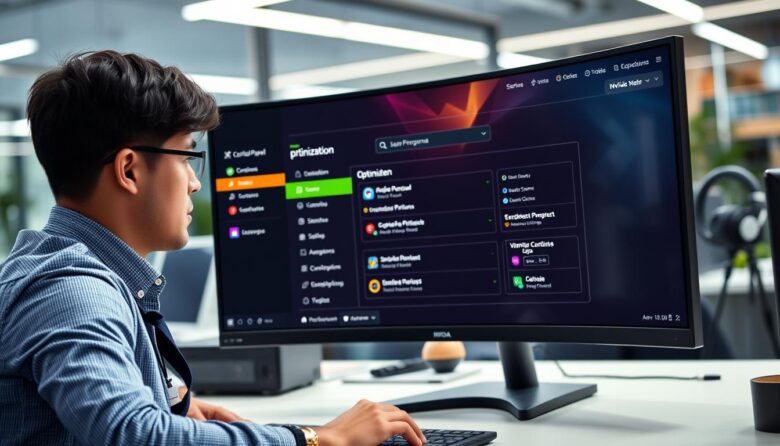
I’ll show you how to Optimize NVIDIA Control Panel and tweak AMD software so your rig runs at peak performance. I wrote this guide to help you get more fps and smoother gameplay without expensive upgrades.
First, you’ll learn the key control panel settings that matter for visuals and responsiveness. I cover power tweaks, GPU profiles, and the small adjustments that save time and boost stability in intense game sessions.
I spent time testing common nvidia control panel setups and panel settings so you don’t have to guess. Whether you play casually or compete, these settings make your system feel faster and more reliable.
Key Takeaways
- Simple tweaks in the control panel can increase fps and improve visual clarity.
- Adjusting power and performance settings stabilizes long game sessions.
- Small GPU changes often yield big gains without new hardware.
- I provide clear, step-by-step panel settings for quick setup.
- This guide saves you time by sharing tested, gamer-focused recommendations.
Getting Started with GPU Optimization
I start every tuning session by checking for the latest driver updates for my GPU. Keeping drivers current is the easiest way to avoid compatibility problems and keep games running well.
Updating Graphics Drivers
Kunal Khullar at Digital Trends recommends driver updates as the key to peak performance. I download drivers from the official website to ensure Windows correctly detects resolution and refresh rate for my monitor.
Proper driver management is the foundation for all other tweaks. I check for updates monthly to keep the GPU talking cleanly to display hardware and system software.
Accessing the Control Panel
You can open the nvidia control panel using the Windows search bar. Once open, you will find settings to manage power and display output.
If you need help, the official site has step-by-step guides to update drivers and keep a high refresh rate. This is the best way to protect your performance and maintain a steady frame rate.
| Task | Why it matters | How often |
|---|---|---|
| Update drivers | Ensures compatibility with new games and fixes | Monthly |
| Open control panel | Adjust power and display settings | Before major changes |
| Verify resolution & refresh rate | Prevents display glitches and stuttering | After driver install |
How to Optimize NVIDIA Control Panel for Gaming
I focus the most time on the 3D Settings tab because it directly shapes how games perform. That area gives you the clearest levers to change fps and visual quality on your gpu.
In the 3D Settings tab I adjust a few core options. These include power management mode, texture filtering, and anti-aliasing choices.
When I tweak nvidia control options, I test one change at a time. This helps me see which panel settings raise fps and which hurt visual fidelity.
- I use performance-focused settings for competitive gaming.
- I shift to quality options for single-player titles if the fps budget allows.
- Always create game-specific profiles in the control panel so each game gets the best setup.
| Setting | Effect | When to use |
|---|---|---|
| Power Management Mode | Max performance keeps clocks high | Competitive gaming |
| Texture Filtering | Balances sharpness and speed | Moderate to high detail games |
| Antialiasing | Reduces jagged edges at cost of fps | Single-player or when fps is high |
Configuring Advanced 3D Image Settings
My goal here is to show precise 3D image tweaks that improve clarity without killing frame rates.
I always pick the Use Advanced 3D Image Settings option in the control panel to unlock every choice. That lets me adjust sharpening, texture filtering, and anti-aliasing per game.
Image Sharpening
I set image sharpening to 0.50 and film grain to 0.17. This gives crisp visuals while keeping good performance and stable fps.
Texture Filtering
Texture filtering is key for distant detail. I raise filtering only as far as the gpu can handle without big drops in frame rate. Good filtering improves perceived resolution on large monitors.
Anti-Aliasing
Anti-aliasing smooths edges but costs fps. I balance AA with texture filtering, using lower AA for competitive gaming and higher AA for single-player titles.
“I enable low latency mode when every millisecond matters, then use the image settings preview to verify visual impact.”
- I enable low latency mode to cut input lag.
- I use the adjust image settings preview before I click apply to confirm results.
- After changes I always apply save changes so the gpu uses the new panel settings.
| Option | Recommended Value | When to Use |
|---|---|---|
| Image Sharpening | 0.50 / Film grain 0.17 | All games for clarity |
| Texture Filtering | High (balanced) | Open-world and high-res textures |
| Anti-Aliasing | Low to Medium | Competitive gaming or low fps |
| Low Latency | On / Adaptive | Fast-paced gaming |
Adjusting Display Resolution and Refresh Rate
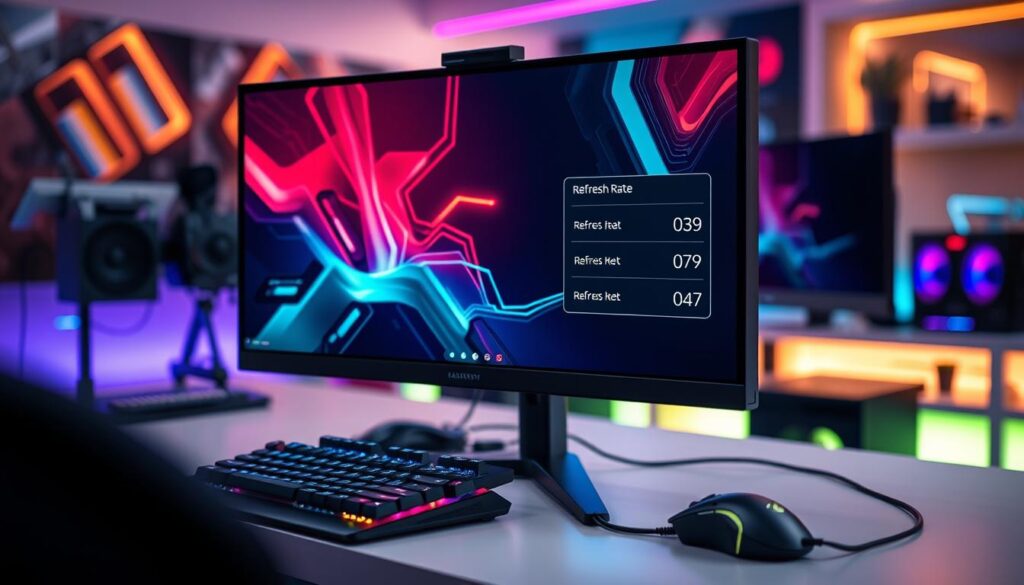
The first thing I do is make sure the monitor and gpu agree on resolution and refresh rate. That prevents stutter and gives a clean, responsive desktop before deeper tweaks.
I use the Windows Advanced Display Info tool to verify the monitor refresh rate and confirm the display reports the correct resolution.
Customizing Refresh Rates
In the nvidia control panel I open the change resolution tab and pick the highest refresh rate available for my monitor. Selecting the right resolution and refresh rate makes the desktop look sharp and motion feel smooth.
I always click apply after changing settings so the new monitor refresh rate becomes active. If frames still feel off, I recheck the Windows Advanced Display Info to ensure the gpu output matches the monitor refresh.
- I set the display to the highest possible resolution for clarity.
- I choose the top refresh rate for gaming where fps matters.
- I verify the monitor refresh after each change and then apply save changes.
“Setting the correct resolution and refresh rate is the best way to ensure a responsive desktop and smoother gameplay.”
| Action | Why it matters | When to do it |
|---|---|---|
| Check Windows Advanced Display Info | Verifies monitor refresh rate and resolution | Before and after changes |
| Change Resolution tab in the control panel | Selects the highest available refresh rate | When tuning for gaming |
| Click apply / save changes | Activates new display settings | Immediately after any change |
Managing Desktop Color and Video Enhancements
Small changes to desktop color bring big visual improvements on my gaming monitor.
I set Digital Vibrance to about 70–80% so the colors in my games pop without looking oversaturated. This tweak makes foliage, skies, and HUD elements more vivid on a high-quality display.
In the nvidia control panel I also set the output dynamic range to Full. That gives better color depth and removes crushed blacks on many displays.
I always click apply after I change desktop color so the display saves the new profile. These settings do not lower gpu performance, so they are safe to test during play.
- I tweak resolution and color balance until text and UI elements look crisp in both work apps and games.
- I recommend testing in different room lighting to find a natural look for your monitor.
- Keep a note of your best settings so you can restore them after driver updates.
“A quick color tweak is often the easiest way to make games look more lifelike without changing hardware.”
| Adjustment | Recommended Value | Why it helps |
|---|---|---|
| Digital Vibrance | 70–80% | Makes colors pop while keeping skin tones natural |
| Output Dynamic Range | Full | Better color depth and true blacks |
| Resolution & Color Balance | Match native monitor | Ensures crisp UI and accurate display for games |
Fine-Tuning AMD Software for Better Performance
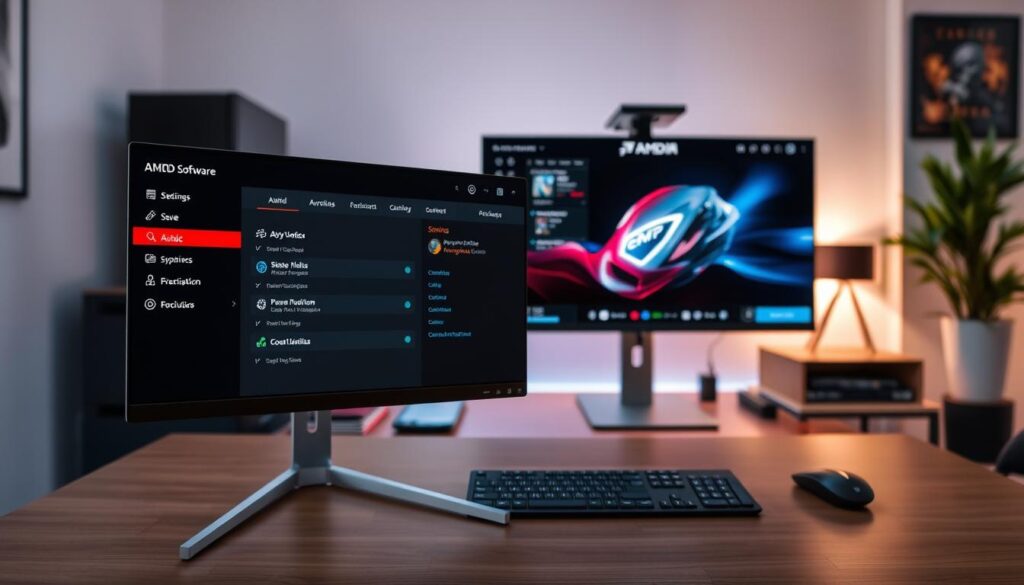
A few targeted changes in AMD software often yield noticeable gains in responsiveness and fps. I walk through the two tweaks I use most: Radeon Anti-Lag and image sharpening. Both are quick to enable and test, and they help keep gameplay smooth on my monitor.
Enabling Radeon Anti-Lag
Radeon Anti-Lag reduces input latency by tightening the CPU-to-GPU frame queue. I turn it on when I want faster responses in competitive matches.
It’s a low-risk option that often improves feel without lowering frame rates. After enabling, I play a few rounds to verify the impact and then click apply to save changes.
Adjusting Image Sharpening
I use image sharpening to recover detail after lowering some in-game options for fps. I start with a mild sharpening level and raise it until visuals look crisp without introducing noise.
When I change texture filtering or other image options, I always click apply so the gpu uses the new settings. That way the tweaks stay active across sessions.
- I enable Radeon Anti-Lag to cut latency and help my aim feel tighter.
- I set the power management mode on my other GPU to prefer maximum performance for stability.
- Fine-tuning these panel settings often returns more fps and steadier performance in-game.
“Small software tweaks can deliver big improvements in latency and frame pacing—test one option at a time.”
Setting Up G-Sync and Variable Refresh Rates
G‑Sync ties my monitor’s refresh to the GPU so frames arrive in sync and tearing disappears. I enable it in the nvidia control panel when I want smooth, consistent motion for gaming.
Variable refresh rates match the monitor refresh to the gpu output. That sync removes tearing and smooths frame delivery across different fps levels.
I always check the monitor settings and the display resolution after enabling these features. A correct monitor refresh rate ensures the display can follow the GPU without drops or stuttering.
These control panel settings keep frame pacing steady and make fast motion look natural. I find the setup essential for competitive play and for any system where the monitor and GPU must stay in step.
“Setting up a variable refresh rate is the best way to eliminate screen tearing and ensure a smooth experience in every game.”
- I verify the monitor refresh after each change.
- I test with different fps targets to confirm smoothness.
- I save the profile so the monitor refresh stays consistent across sessions.
Essential Power Management and Latency Tweaks
I keep power and latency settings near the top of my checklist because they directly affect in-game responsiveness.
Power Management Mode
I set the power management mode to Prefer Maximum Performance so my gpu has full clocks during play. This option raises power draw but prevents sudden clock drops that can cause stutters.
I also toggle low latency mode in the nvidia control panel to cut input lag and make aiming feel tighter. That setting reduces frame queuing and often improves my input-to-screen feel.
I always watch GPU temperature when I use prefer maximum performance. Higher power means higher thermals, so I keep fans and case airflow in check to protect hardware.
Texture filtering and power choices work together to hold a steady fps at target resolution and refresh rate. When I balance these settings, the monitor refresh and overall frame pacing stay stable.
“Set power options carefully: they are vital for smooth, responsive gameplay on any monitor.”
- I use the control panel to apply changes per game so the gpu is ready when I launch a title.
- Monitor temps after switching to maximum performance and adjust cooling as needed.
- Test low latency mode with your favorite game to confirm reduced input lag.
Conclusion
To wrap up, I’ll highlight the few settings that give the biggest, consistent gains for gaming.
strong, Take time to set your resolution and refresh rate so the monitor and GPU match. That step alone fixes many display and desktop stutter issues.
Use the control panel to tune texture filtering and image options, then open the image settings preview to compare results. Always click apply to save changes so your hardware uses the new profile.
Try small tweaks, test one change at a time, and note what improves fps and feel. With regular maintenance your monitor refresh rate and panel settings will keep games smooth for years.
FAQ
How do I update graphics drivers before changing settings?
I open Device Manager or use the GPU maker’s GeForce Experience or Radeon Software app to download and install the latest drivers. I restart my PC after installation to ensure the new drivers load and then check the driver version in the app before I make tweaks.
How can I access the control panel to change performance options?
I right-click the desktop and choose the graphics app (GeForce or Radeon). On Windows I can also find the software via the Start menu. Once inside, I look for 3D settings, global profiles, or gaming tabs to modify power management, refresh rate, and image options.
What power management setting gives the best frame rates?
I set Power Management Mode to “Prefer maximum performance” for demanding games. That keeps the GPU at higher clocks, which boosts FPS, though it raises power use and heat. I monitor temps and adjust fan curves if needed.
How do I reduce input lag with low latency options?
I enable Low Latency Mode or Radeon Anti-Lag to trim render queue time. I test both off and on, since some titles gain more than others. Combining low latency with a stable high refresh rate gives the best responsiveness.
When should I change the refresh rate on my monitor?
I match the refresh rate to the highest stable value my monitor supports and my GPU can sustain in games. In Display Settings I choose the monitor and set the refresh rate, then click Apply. Higher refresh rates improve smoothness and lower perceived latency.
How do I set resolution and scaling for better performance?
I lower the game resolution or use resolution scaling in the GPU app to gain FPS while keeping UI readable. For competitive play I prefer native monitor resolution with aggressive scaling; for single-player I dial shadows and textures down first.
What image sharpening settings should I use?
I use Image Sharpening or Radeon Sharpening sparingly—enough to restore clarity after scaling but not so much that artifacts appear. I test the slider per game and save profiles so I don’t repeat adjustments each launch.
How does texture filtering affect performance?
I set Texture Filtering to performance-friendly options when I need FPS. Trilinear or Anisotropic 2x uses less VRAM and GPU time than 16x. For visuals I boost filtering for single-player and drop it for competitive matches.
Should I enable anti-aliasing or turn it off for higher FPS?
I turn off heavy anti-aliasing for faster frame rates, or use cheaper options like FXAA. Sometimes TAA with temporal stability is worth the cost; I test per title and prefer in-app settings over global overrides for consistent results.
How do I configure G-Sync or FreeSync properly?
I enable G-Sync/FreeSync in the monitor OSD and in the GPU app, then set V-Sync to adaptive or off depending on tear sensitivity. I ensure the refresh range includes my target FPS to avoid stutter when rates drop.
What desktop color and video enhancements should I change?
I keep color tweaks minimal for accurate tones but disable post-processing video enhancements while gaming. Adjusting digital vibrance or color temperature is a personal preference, so I save desktop profiles separately from game profiles.
How do I save custom profiles for different games?
I create and save application-specific profiles inside the GPU software. I name each profile, set power, latency, sharpening, and resolution options, then apply and test in-game. This keeps my settings consistent across titles.
Will "Prefer maximum performance" harm my GPU long-term?
I find it increases heat and power draw, but modern GPUs are designed for sustained loads. To protect hardware I monitor temperatures, use adequate cooling, and avoid running maximum performance 24/7 for non-gaming tasks.
How can I quickly restore default settings if a change causes issues?
I use the “Restore Defaults” or “Factory Reset” button in the GPU software. I also keep notes or screenshots of previous settings so I can revert specific tweaks rather than resetting everything when troubleshooting.
What’s the fastest way to improve FPS without losing too much image quality?
I lower shadows, view distance, and post-processing first, then reduce texture detail and anti-aliasing. Enabling resolution scaling and mild sharpening recovers perceived clarity while boosting performance.
How often should I recheck settings after driver updates?
I review key settings after major driver releases because defaults can change. I verify power mode, low latency, refresh rate, and custom profiles to ensure my performance preferences persist.

Ethan is a lead GPU reviewer and hardware analyst with a passion for pushing silicon to its absolute limits. With a background in computer engineering, he spends his days building custom test benches, analyzing frame-time graphs, and breaking down complex GPU architectures. When he’s not benchmarking the latest NVIDIA and AMD releases for VN Pixel, he is likely tweaking his custom-loop water-cooling setup to achieve the perfect overclock.