I help you spot clear signs when your graphics card starts to misbehave. I write from hands-on experience and focus on practical steps you can take right now. This short guide will save time and money by showing when to repair and when to replace.
Many users confuse simple software trouble with permanent hardware damage. I will show how overheating, loose power plugs, worn fans, or outdated drivers can cause crashes, glitches, and strange visual artifacts on your monitor.
A well cared-for graphics card often lasts about five years. With basic maintenance and the right checks, you can extend its life and keep games and apps running at peak performance.
Key Takeaways
- I will help you identify primary signs that point to real GPU problems.
- Simple checks like fan function and driver updates fix many issues.
- Visual artifacts and crashes can come from overheating or physical damage.
- Follow step-by-step diagnostics before buying a new card.
- Proper cooling and routine care can extend the component’s life.
Understanding the Symptoms of a Failing Video Card
I’ll show how to spot early warning signs in your GPU before small problems turn costly. I focus on practical checks you can run in minutes.
Lifespan and care: Most modern graphics card designs last about five years when cooling components stay clean. Dust and blocked airflow shorten life and hurt gaming performance over time.
Quick causes to watch for:
- Abnormal fan noise or uneven spin, which often precedes bearing failure.
- Unexpected crashes during games that can point to overheating, faulty power, or a bad driver.
- Warranty checks matter — many makers will replace fans free even outside standard coverage.
“Before you swap hardware, confirm the issue isn’t drivers or software for a single game.”
I recommend simple checks first: inspect fans, verify power connectors, update the driver, and monitor temps under load. These steps save time and often avoid unnecessary replacement of the GPU.
Identifying Common Visual Artifacts and Screen Glitches
I’ll walk you through how to recognize common screen glitches that point to GPU trouble. Read slowly and check each clue before you assume hardware failure.
What Are Visual Artifacts
Visual artifacts show up as pixel blocks, strange colors, or random shapes on the screen. They can appear in the desktop, in games, or during video playback.
Note: Some issues come from the monitor or cable. Swap the display cable and test another monitor before blaming the card.
Why They Occur
Artifacts often follow overheating, driver faults, or power errors. If the GPU exceeds safe temps during gaming, memory and shaders can misrender frames.
- Code 43 error usually means the system lost communication with the graphics card and can cause visible glitches.
- Flickering textures and screen tearing show the card is struggling to keep up with rendering demands.
- Bad cables or loose connectors can mimic GPU faults—always rule those out first.
| Artifact Type | Likely Cause | Quick Check |
|---|---|---|
| Pixel blocks / strange shapes | Overheated GPU memory or driver corruption | Monitor cable swap; check temps |
| Flicker / tearing | Frame timing or driver issue | Enable V-Sync or update driver |
| Colored stripes | Loose connector or VRAM fault | Reseat cables; test with another monitor |
| Code 43 / device error | Driver/OS communication failure | Reinstall drivers; check Device Manager |
Diagnostic Steps for System Crashes and Performance Issues
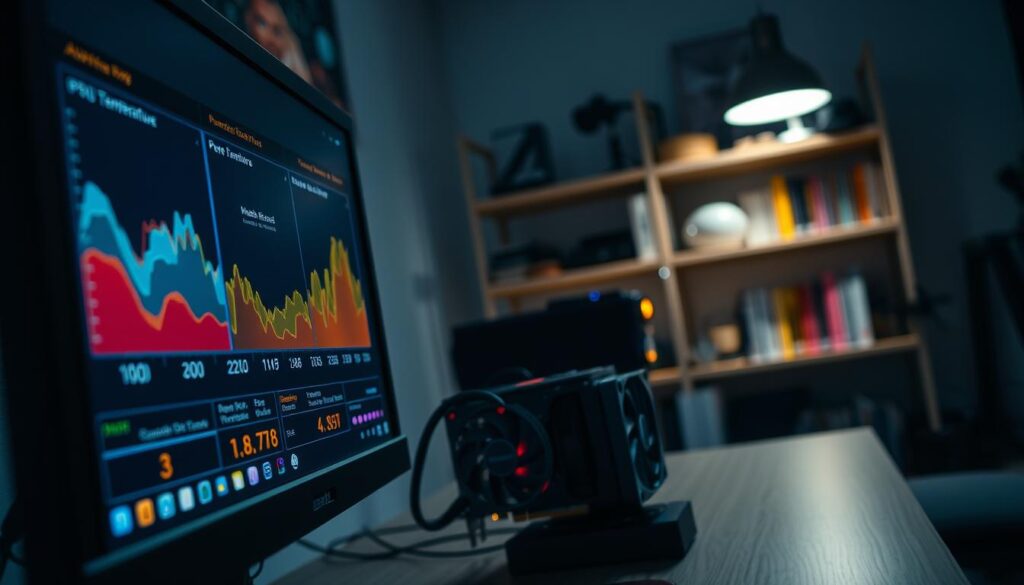
If your system drops frames or shuts down under load, start with controlled tests before replacing any hardware. I run stress tools while I watch temps and fan speeds to separate software faults from real hardware damage.
Monitoring Temperatures Under Load
Run a stress test and monitor the gpu temperature closely. Any reading over 80°C is a clear sign of overheating that needs fixing.
I use HWiNFO to track temperatures and fan RPM. If fans spin erratically or get loud, that is a strong sign the component is under stress.
- Use stress-testing software and stop if temps exceed 80°C.
- Check motherboard error codes after a crash to confirm a card failure.
- Inspect the case for dust and blocked airflow; debris often causes overheating during gaming or video work.
| Check | What to watch | Action |
|---|---|---|
| Temperature | Consistent >80°C under load | Improve cooling; reduce clock or stop test |
| Fan behavior | Loud or irregular RPM | Clean fans; replace if bearings fail |
| Crash codes | Motherboard POST errors or code 43 | Record code; reseat card; test with other drivers |
Troubleshooting Graphics Drivers and Software Conflicts
Start with driver cleanup and updates — this step solves more gpu errors than most people expect.
Clean installation: I perform a fresh install of the graphics drivers to remove corrupted files and reset settings. This often clears display glitches and boosts performance.
On Windows, open Device Manager and look for error markers next to the card. Code or warnings here point to driver problems rather than physical damage.
I use Driver Support tools to keep my gpu firmware and drivers current. These tools reduce compatibility issues and stop outdated software from causing the system to behave strangely.
- Try resetting the display driver (Win+Ctrl+Shift+B) to clear transient glitches.
- For persistent errors, run Display Driver Uninstaller (DDU) in safe mode for a deep removal.
- Reinstall the latest official driver and retest performance under load.
Pro tip: Always test with another monitor or cable after driver fixes. That rules out external display problems and narrows down the real issue.
Physical Inspection and Cooling System Maintenance
A quick physical check under the case lid often reveals the real culprit behind many gpu problems. I start with a visual inspection before any software steps.
Cleaning Dust and Debris
Dust on the heatsink or fans prevents proper cooling and raises temperatures fast. I use short bursts of compressed air to clear vents and fins.
Tip: Clean the interior of your computer case every few months to stop debris from building up on the graphics card and other hardware.
Checking Fan Bearings
Listen for grinding or rattling when the fan spins. Worn bearings cause noisy fans and reduce airflow.
If a fan shows wobble or odd noise, clean it first. Replace the fan if noise persists to protect the gpu and related components.
Power Supply Requirements
An underpowered PSU can make your card crash under load. I check the manufacturer’s wattage and ensure all power connectors sit tight.
- Confirm the PSU has the required rails and connectors for your graphics card.
- Reseat power plugs and inspect for burn marks or loose pins that could cause damage.
Quick reminder: a clean cooling path, healthy fans, and adequate power prevent most hardware failures.
Deciding Between Professional Repair and Hardware Replacement
When repair bills climb, I help you decide whether to fix the graphics card or buy new hardware.
If your graphics card is still under warranty, contact the manufacturer first. A warranty repair often costs you nothing and preserves value.
Evaluate repair cost versus replacement. If the fix for older components is near the price of a new model, investing in a modern card makes more sense.
- Warranty first: pursue manufacturer repair when covered.
- Cost check: compare repair estimates to retail for a replacement.
- Performance upgrade: a new graphics card can boost frame rates and visual quality in current games.
For high-performance gaming, I recommend the Acer Predator BiFrost Intel Arc A750 OC as a solid new graphics option. If your gpu has severe physical damage, repair is often not viable and replacement is the practical path.
Quick tip: test with another monitor if the screen shows odd artifacts before you commit to repair or buy.
Conclusion
, Follow a short checklist to tell software glitches apart from true GPU failure. I write from hands-on tests so you can act fast and save time and money.
Keep monitoring temps, update drivers, and clean fans and the case to improve cooling and extend life. If artifacts or repeated system crashes persist, consider testing with another monitor and checking power connections.
I recommend weighing repair cost against buying new graphics hardware for your desktop. With clear steps and steady troubleshooting, you can decide whether to repair or replace and keep games and performance running well.
FAQ
What are the first signs my GPU might be failing?
I notice flickering, colored lines, or weird shapes on the display when I boot or while gaming. Crashes, sudden reboots, or the system freezing under load also tip me off. I pay attention to unusual fan noise and rising temperatures in monitoring tools like MSI Afterburner or HWMonitor.
How can I tell if visual artifacts mean hardware damage or just a driver issue?
I test by updating or rolling back drivers, then booting into safe mode. If artifacts persist on a clean driver install, appear in BIOS, or show up on another machine or monitor, I treat it as hardware. If they vanish after a driver change, software conflict was likely the culprit.
What kinds of visual glitches should worry me most?
I’m most concerned about persistent pixelation, screen tearing beyond V-Sync fixes, purple or green blocks, and rainbow-colored lines. These patterns often point to memory or GPU chip problems and need prompt attention to avoid further damage.
How do I monitor temperatures under load to diagnose overheating?
I run a stress test like Unigine Heaven or 3DMark while watching temps with GPU-Z or HWMonitor. If the GPU hits high temps (typically above manufacturer specs) and throttles or crashes, cooling or thermal paste issues are likely to blame.
What driver and software checks should I perform before assuming hardware failure?
I clean-install the latest GPU driver using DDU in safe mode, test with vanilla game settings, and disable overlays like Discord or Steam. I also check Windows updates, BIOS, and any game-specific patches that might resolve conflicts.
How do I safely clean my graphics card and case to improve cooling?
I power down and unplug, remove the card, then use compressed air in short bursts to blow dust from heatsinks and fans. I avoid touching components directly and hold fans steady to prevent bearing damage. I also clean case filters and improve airflow by reorganizing cables.
When should I inspect GPU fans and how do I check bearings?
I listen for grinding or wobbling while the system runs and spin each fan by hand when powered off to feel for roughness. If a fan makes noise, stalls, or lags, I replace it or the whole cooler to prevent overheating.
Could my power supply cause these graphics problems?
I check that my PSU provides stable voltages and enough wattage for the GPU, especially during peak load. If I see crashes under load or coil whine and my PSU is underpowered or old, I swap in a known-good supply to rule it out.
When is it worth trying professional repair versus buying a new GPU?
I consider repair if the card is high-end and repair costs are less than replacement. For older or mid-range cards, replacement usually makes more sense. Warranty status, the nature of the fault, and parts availability guide my choice.
Are there quick tests to confirm a bad GPU without special tools?
I try the card in another PC, use an alternate display and cable, boot into BIOS to spot artifacts, and run a short stress test. Consistent errors across systems or in firmware screens confirm hardware failure more than driver-only tests.
How do I handle warranty claims for a defective graphics card?
I gather proof of purchase, note serial numbers, and record the exact failure behavior and test steps I ran. I contact the card maker—NVIDIA partners like EVGA, ASUS, or MSI—and follow their RMA process, keeping backups of all communications.
What precautions should I take before installing a new GPU?
I uninstall old GPU drivers with DDU, power off and unplug the system, and ensure the new card fits in my case and my PSU has the right connectors. I seat the card firmly, attach power cables, then install drivers from the manufacturer’s site.

Ethan is a lead GPU reviewer and hardware analyst with a passion for pushing silicon to its absolute limits. With a background in computer engineering, he spends his days building custom test benches, analyzing frame-time graphs, and breaking down complex GPU architectures. When he’s not benchmarking the latest NVIDIA and AMD releases for VN Pixel, he is likely tweaking his custom-loop water-cooling setup to achieve the perfect overclock.